
How do I import and organize existing bookmarks with AI?
By Bingo · Updated
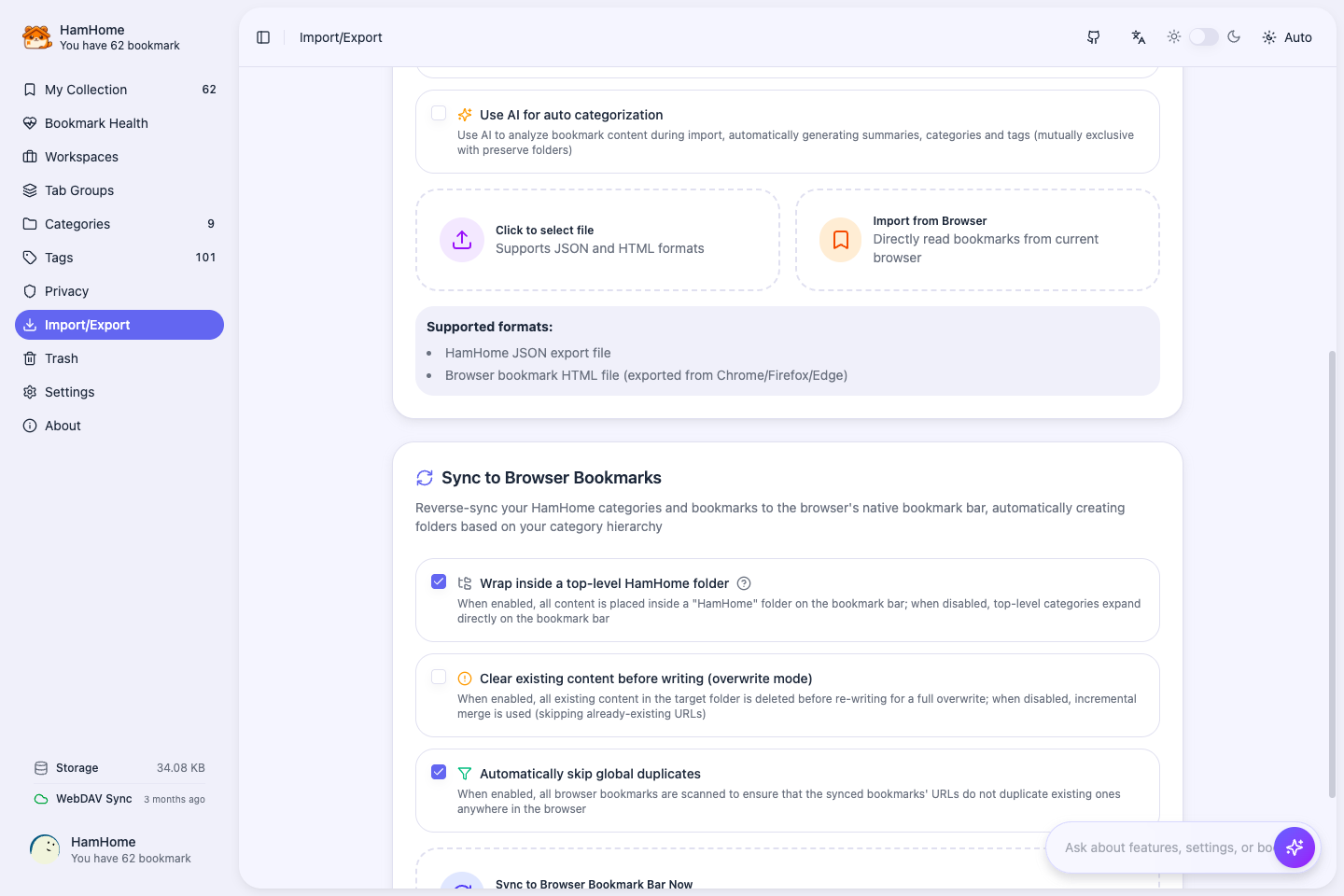
The workflow is import into HamHome, run bulk AI analysis, and optionally write results back to the browser bookmark bar. HamHome imports current browser bookmarks or HTML bookmark files. Preserving original folders as categories and automatic AI analysis during import are mutually exclusive options.
How to use it
- Export an HTML bookmark backup from your browser first. The file also works for migration between browsers; you perform this backup yourself.
- Open the import/export area in HamHome Settings and choose browser bookmarks or an HTML file. Start with a small selection and check the result.
- Choose either preserving original folders as categories or AI analysis during import after configuring AI. Optional page-content fetching takes extra time.
- Select imported bookmarks in the library and run bulk AI reanalysis. Review and adjust categories, tags and summaries.
- To use the results in the native bookmark bar, explicitly run write-back. Check the HamHome root folder, duplicate skipping and clear-target options before proceeding.
Requirements and limits
- Import and AI categorization work inside the HamHome library. Writing back to the browser is a separate action.
- Unavailable, login-protected or sparse pages may affect results. Bulk cloud AI analysis may incur API charges.
- Clearing the target affects native bookmarks in that area. Check your target and backup; write-back is not an unconditional lossless merge.